EzColorize
Colorize & Restore
Photo ColorizerHOT

Colorize and restore black & white photos

Free
Image ConverterFREE

Batch convert JPG, PNG, and WebP images

Image ResizerFREE

Resize JPG, PNG, and WebP images locally

Pricing

EzColorize Photo Colorizer & Photo Restorer

Restore old photos online in seconds. Automatically colorize black-and-white photos, remove scratches, and recover face details with AI.
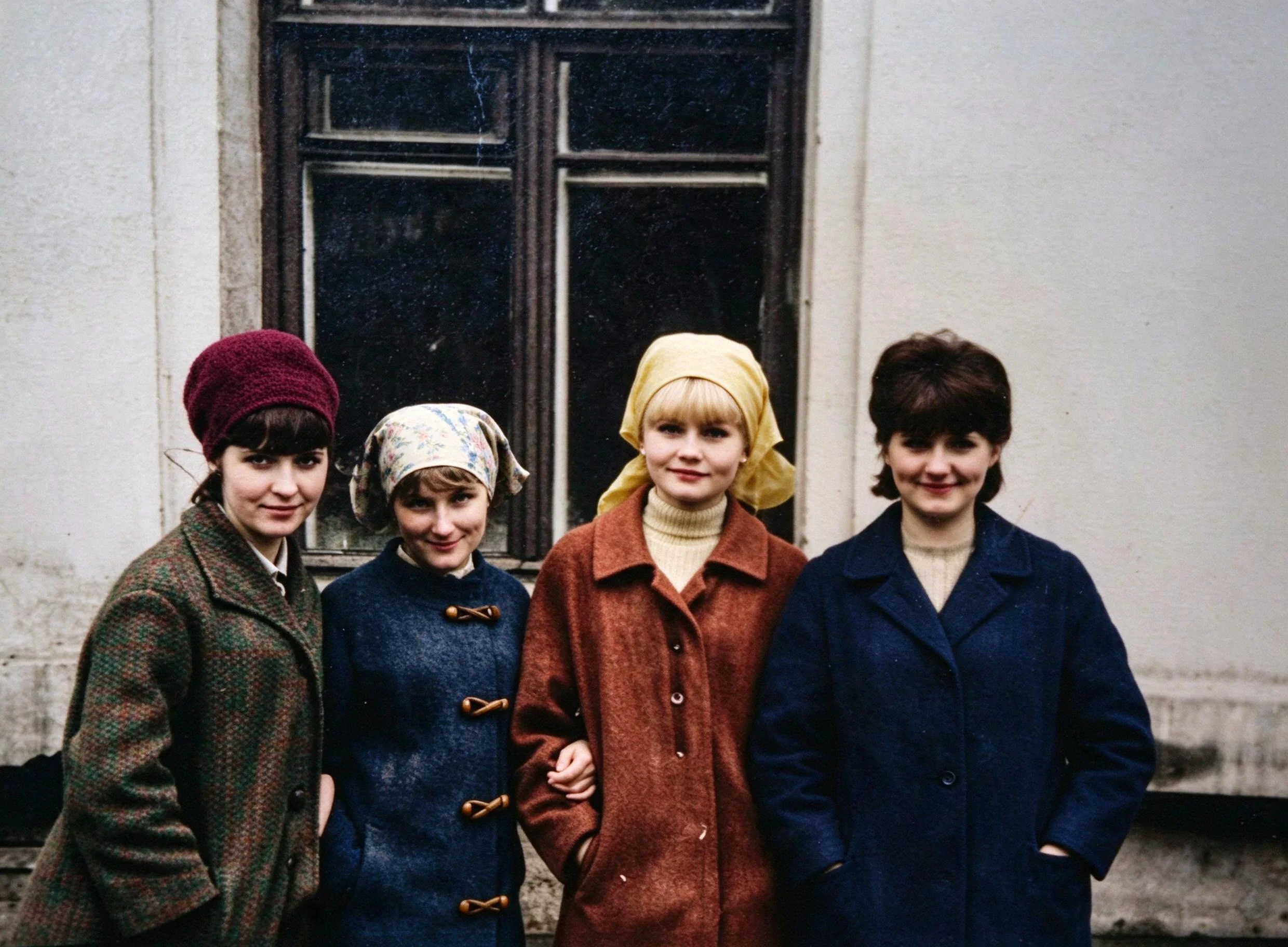
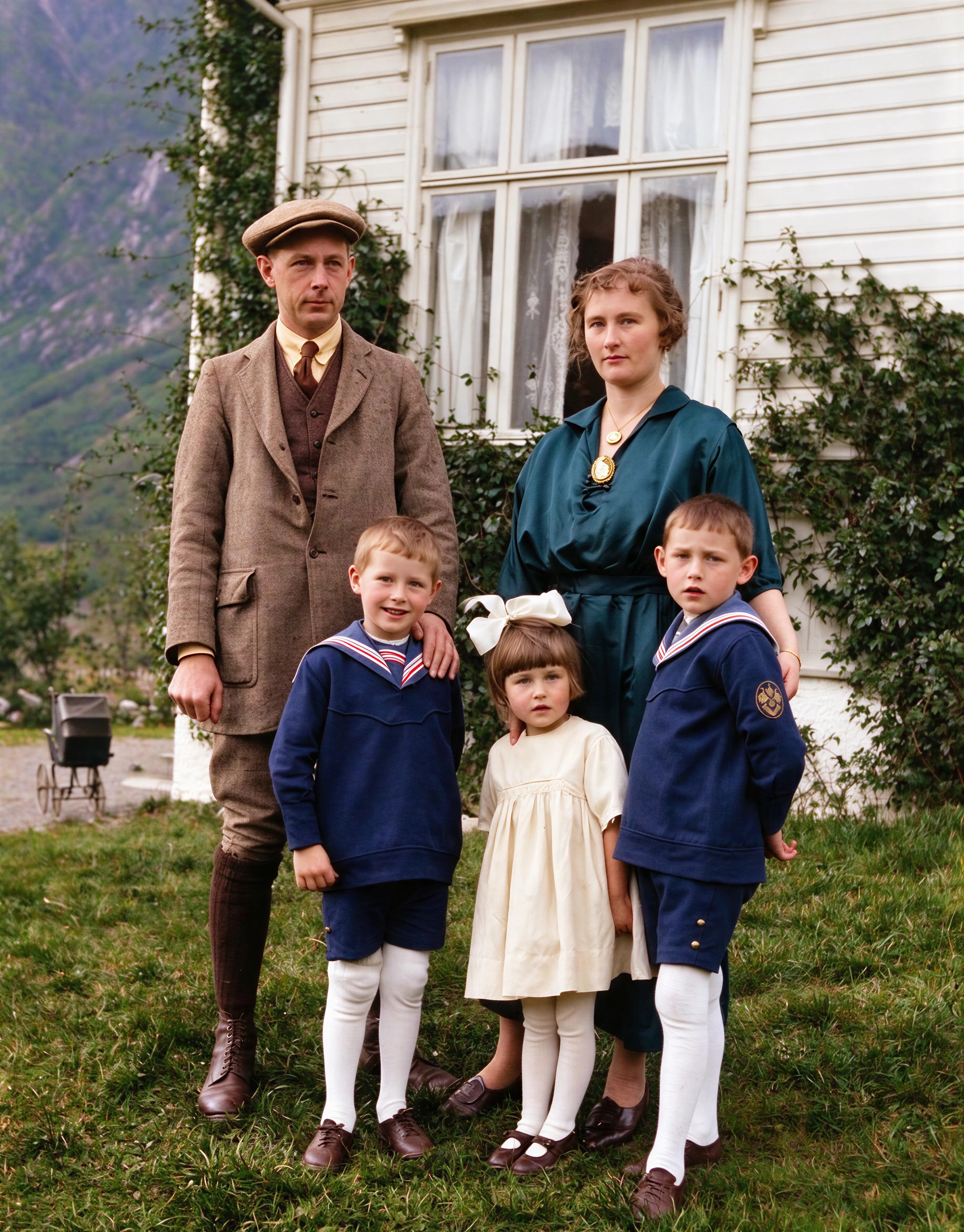
Restored photo
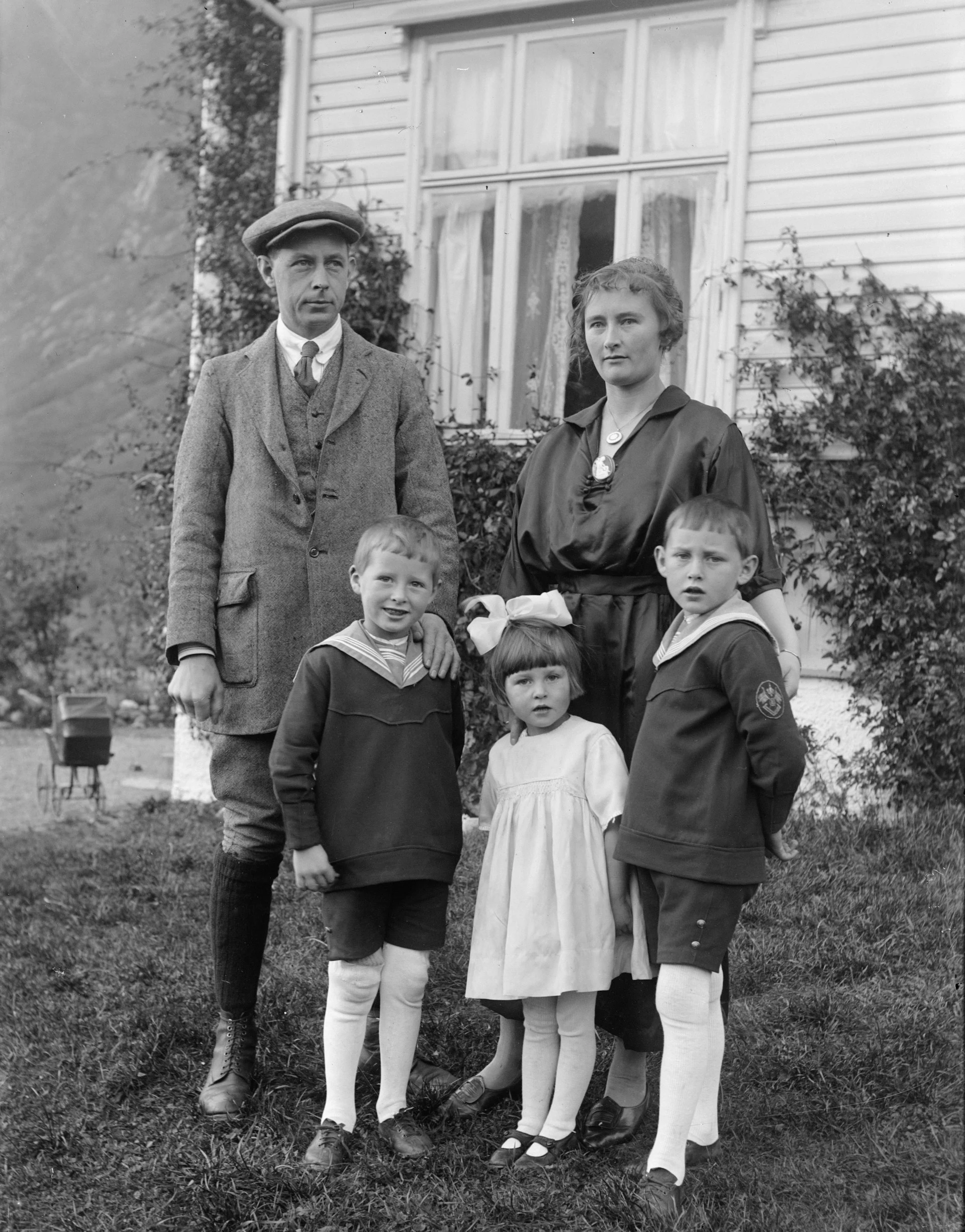
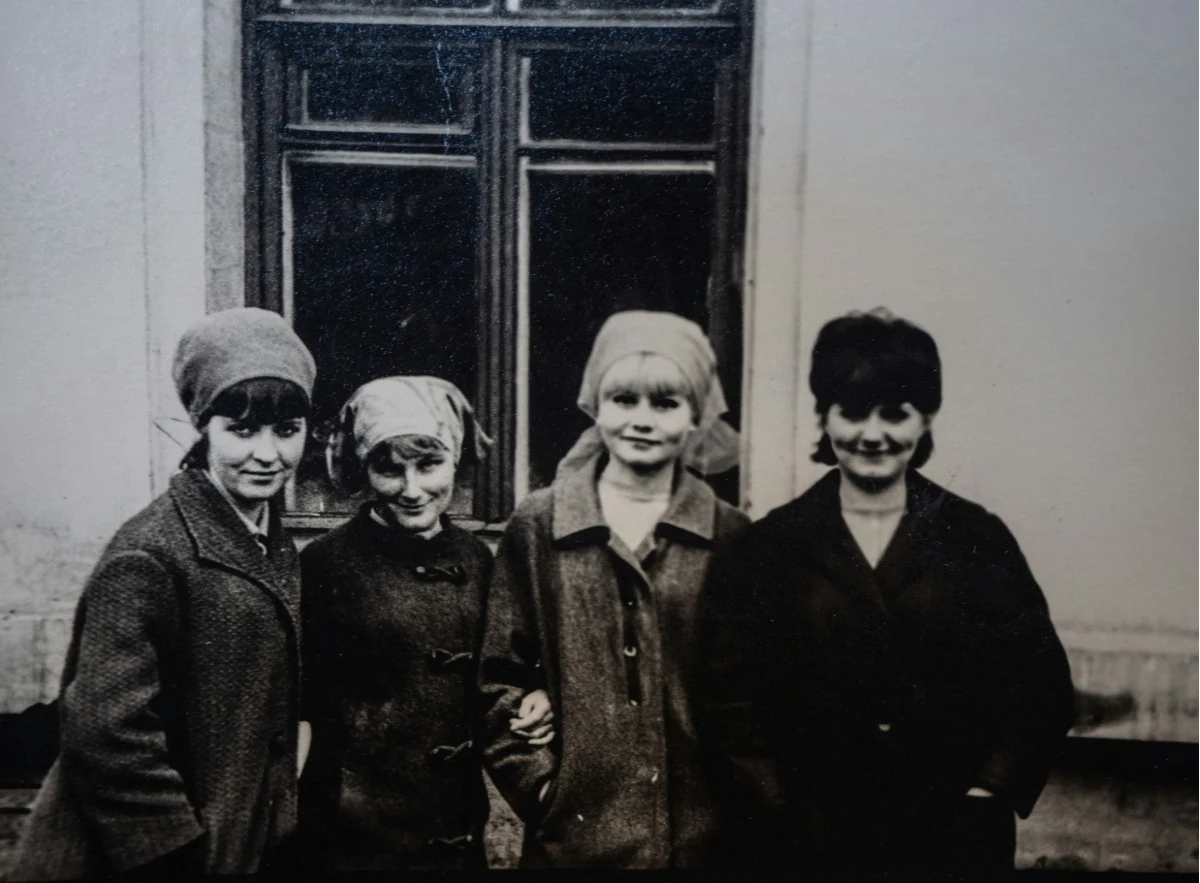
Original photo
BeforeAfter
Upload Image

Drag & drop or click to browse

Secure Fast AI Restored

Instantly Colorize Photos with EzColorize.com

1

AI Photo Colorizer: Restore Natural Skin Tones

Skin is where most colorizers give themselves away: grey cheeks, orange hands, the flat zombie look you can spot from across the room. EzColorize reads each face before it lays down a single shade, then restores natural skin tones from the light already in the photo. Colorize vintage portraits of your grandparents and they still look like themselves.

2

HD Photo Colorization: Colorize and Enhance in 4K

Color is only half the work. Our HD photo colorization pass reads what is already in the pixels, so edges come back sharp and hair and fabric keep their texture instead of smearing into one flat tone. Colorize old photos and you get a file that still holds detail at 4K print size.

3

Colorize Historical Photos: Era-Accurate Color

Silk, wood, brick and metal each age into their own colors, and the model looks for those cues before it colors anything. Older software averages its way through a scene, which is where color bleeding and blocky patches come from. Colorize historical photos material by material and the palette fits the decade, not a default.

4

Auto Colorize: Fix Scratches & Soft Focus

Scans carry their history: dust specks, hairline scratches, the soft focus of an old lens. Auto colorize black and white photos in a single pass, and the same engine that lays down the color repairs the scratches and pulls the blur back into focus. Portrait or landscape, colorize family photos and get a print worth framing, not a smoothed-over copy.

AI Tool to Colorize & Restore
Your Old Black-and-White Photos

Whether you want to rescue a faded family snapshot or revive a historical archive, EzColorize adapts to every scenario. We don’t just colorize; we reconstruct details and upscale resolution to make a color photo from black and white, unlocking the true emotional potential of your photography.
Restored family photo result
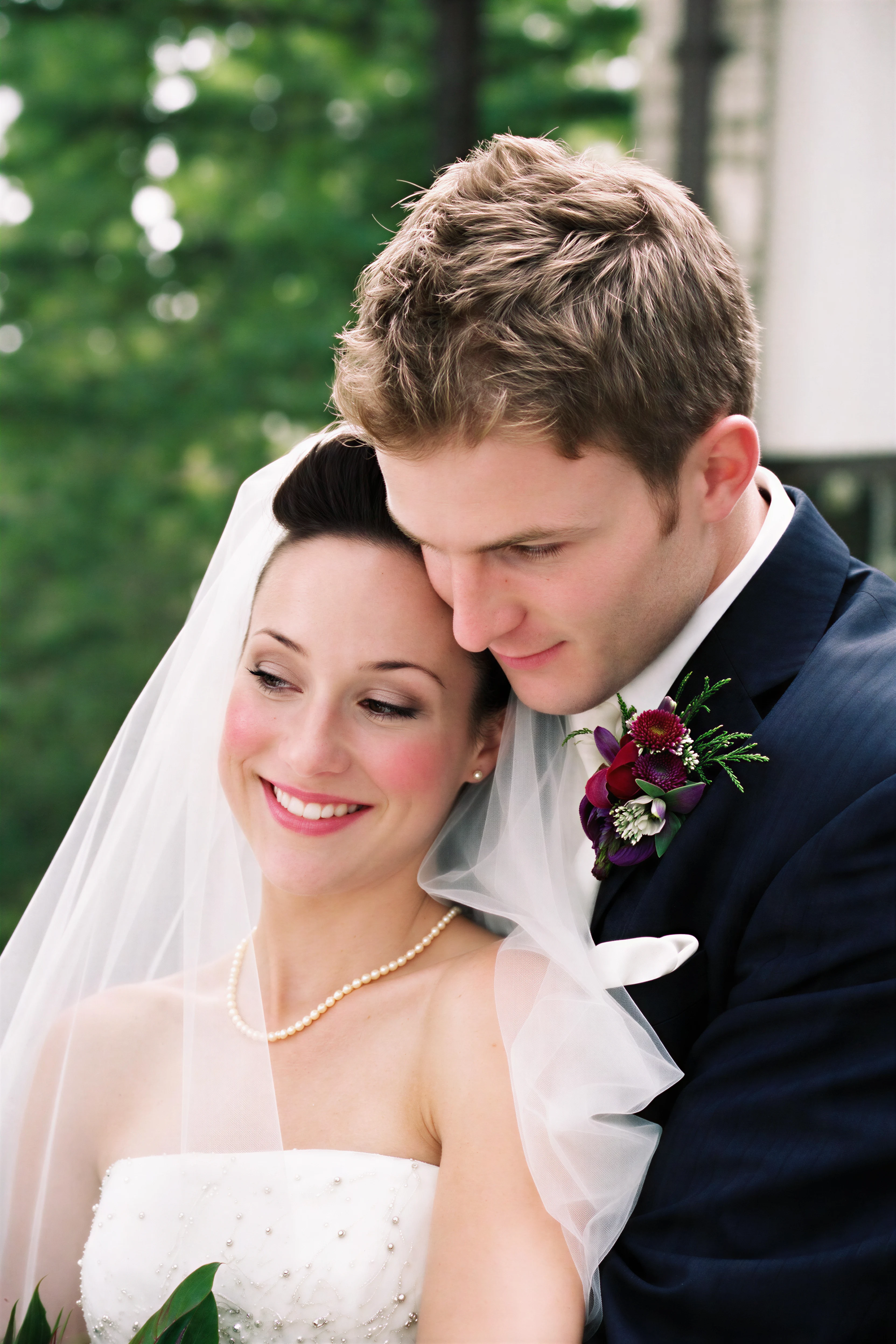
Restored faded wedding photo result
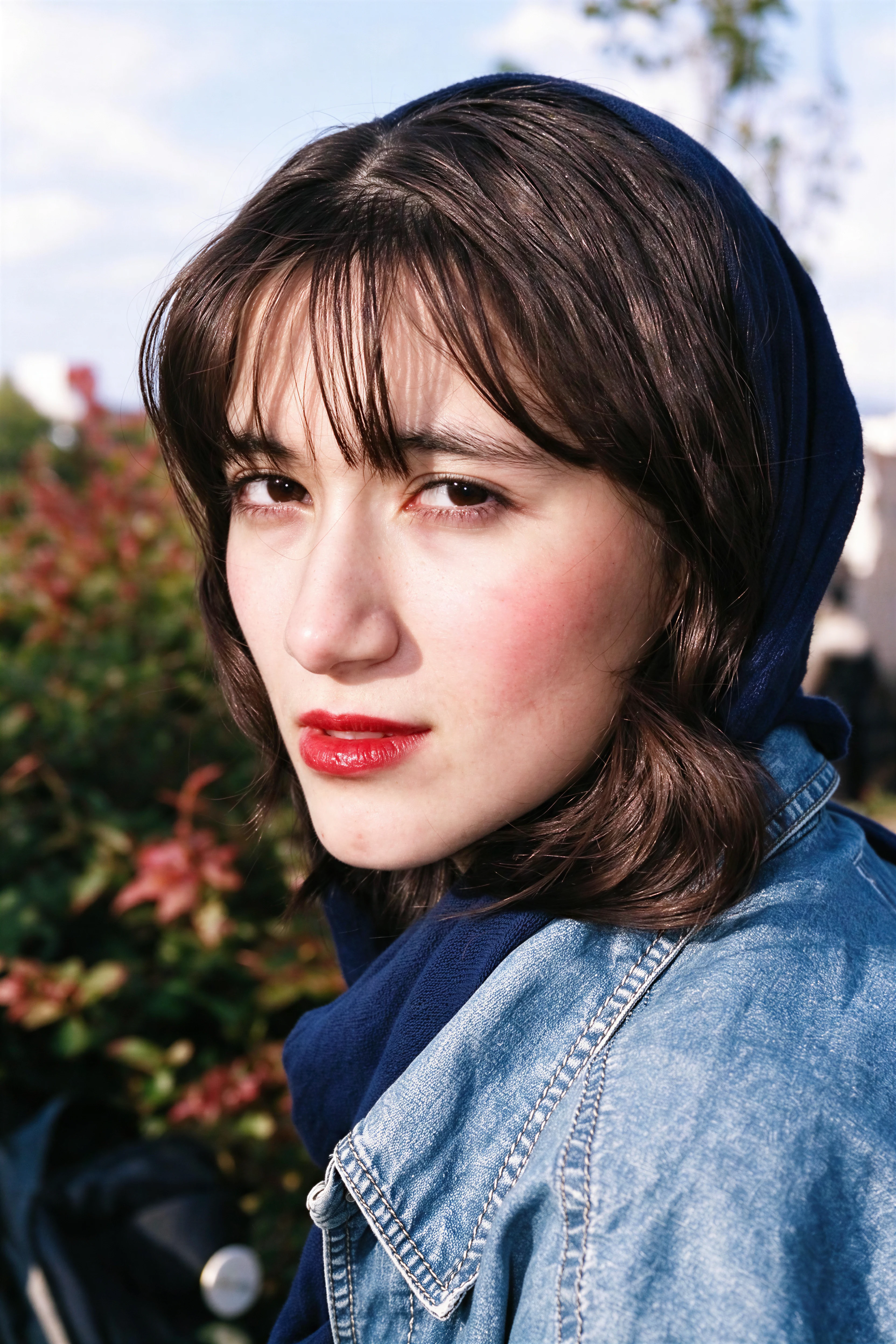
Restored vintage portrait result

Real results processed by EzColorize

Restored family portraitOriginal damaged family portrait on the left
BeforeAfter
The moments worth keeping.

Family Photo Restoration

Revisit the faces you know and love. Repair worn family photographs while keeping the character of the original.
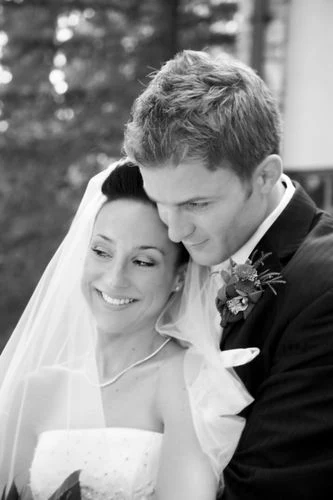
From the family archive
Original photo from the archive

Before

Restored photo from the archive

After

A memory, preserved.

Rediscover Your Photo Archive

Give wedding portraits and treasured album photos a fresh place in your family story, ready to save and share.
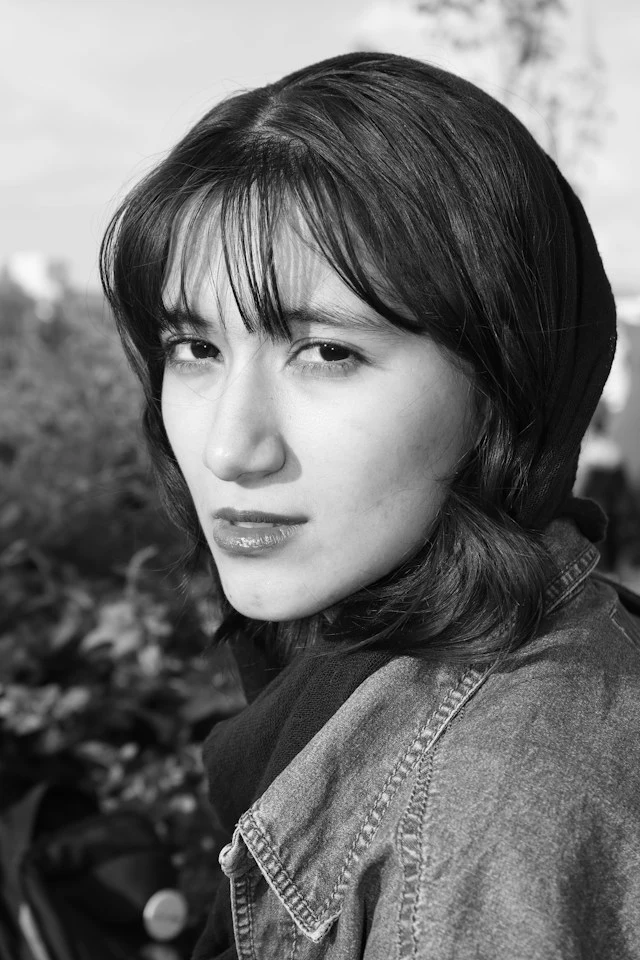
Original faded school portraitOriginal
Enlarged restored face from the same portrait
Restored detail

A Closer Look at Every Portrait

Look beyond the faded surface. Explore restored facial features, hair, and clothing in a close-up of the finished portrait.

A new chapter, in color.
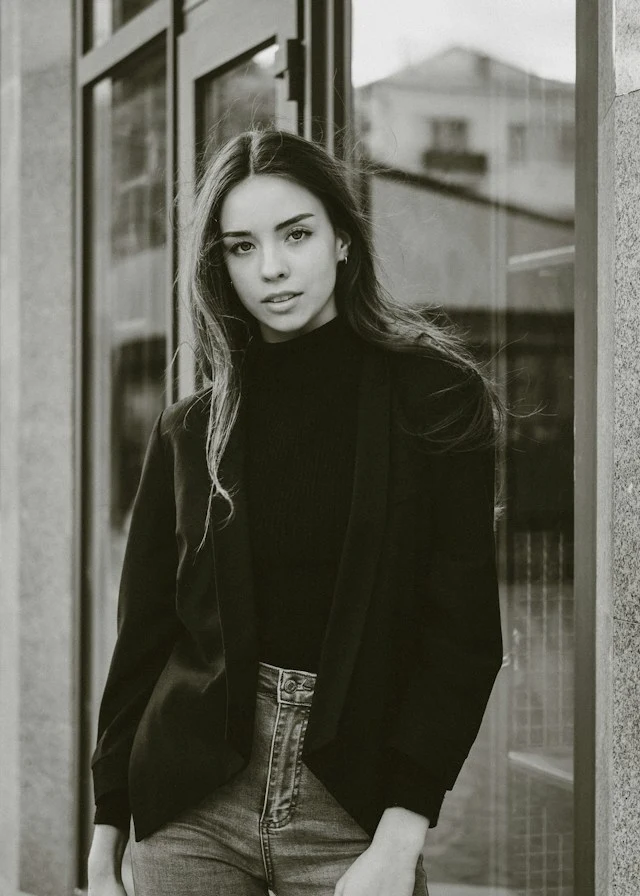
Vintage cafe portrait before colorization
Original
Vintage cafe portrait after colorization
Colorized
Close-up crop of the same colorized portrait
Detail crop

Bring Vintage Photos Back to Life

From a faded original to a colorful keepsake. See the full transformation, then take a closer look at the little details.

Best Use Cases for Old Photo Colorization

EzColorize is built for personal memories, archive projects, genealogy work, and print-ready photo colorization workflows.

Colorize Old Family Photos

Add natural color to treasured family snapshots, childhood photos, and portraits of parents or grandparents.

Genealogy Photo Colorization

Colorize scanned old photos for ancestry research, family history albums, and memorial collections.

Colorize Historical Photos

Bring archival photos, local history images and cultural records to life with natural color, no complex editing software needed.

Prepare Colorized Photos for Printing

Colorize your black-and-white photos first, then use our image upscaler for framed prints, photo books, custom gifts, posters and high-resolution reprints.

How to Colorize a Photo Online?

step 1

Choose a restoration model, then upload a black-and-white photo in JPG, PNG, or WebP format.

step 2

The selected AI model processes your photo automatically. Follow the on-screen progress and wait for your result.

step 3

Compare the original and generated images, then click Download to save your result as JPG, PNG, or WebP.

Natural Photo Colorization That Respects the Original

Only the Color Changes

Colorizing adds hue to a black-and-white photo without reshaping what is already there. Features, expression and proportions stay as they were shot. If a colorized portrait comes back looking like a stranger, compare it with the original before you save.

Colored for the Period, Not for Today

A 1930s street should not come back in neon. The palette follows what the clothing, buildings and materials of that decade actually looked like, so a colorized historical photo does not look like a modern filter was laid over it.

Your Original Stays Black and White

Colorizing produces a new version of the image; the scan you uploaded is not altered. Keep the black-and-white file as your archive copy and open the AI photo colorizer only when you want a color interpretation.

Colorizing Is Not Repair

Color cannot put back a torn corner, a missing face or a scratch across the print. Most old photos need damage repair, sharpening or upscaling before color is worth adding; this guide to restoring, colorizing and upscaling old photos covers the order that works best.

A PHOTO. A LITTLE CARE. A NEW CHAPTER.

The Right Workflow for
Old Photos

From a forgotten print to a photo worth sharing. Keep the original, let AI help, and make the final choices yourself.

  1. 01THE ORIGINAL

    Every story starts somewhere.

    Start with the real thing.

    Keep an untouched copy of your original. Choose a clear scan or photo of the print, with the whole picture in view.

  2. 02THE TRANSFORMATION

    A little help. A fresh perspective.

    Let your model take over.

    Choose a restoration model before uploading. Processing starts automatically. The available enhancements and results depend on the model you choose.

  3. 03THE DETAILS

    The little things are the big things.

    Look at the familiar faces.

    Compare the original and the result. Check faces, clothing, textures, and any added colors before deciding what to keep.

  4. 04THE NEXT CHAPTER

    Ready for the next generation.

    Give it a new home.

    Download your chosen result as JPG, PNG, or WebP. Keep it alongside the original, share it with family, or add it to an album.

One family photo, four moments in the journey. Images illustrate the workflow; results vary by photo and model.

Keep the original. Keep the character.

Your original is irreplaceable. Save it separately and review AI changes, especially faces and inferred colors.

After downloading, prepare a copy for its new home.

Adjust dimensionsChange format

Learn More About Restoring Old Photos

Use these practical guides to choose the right restoration order, avoid artificial-looking results, and decide when manual repair is worth it.
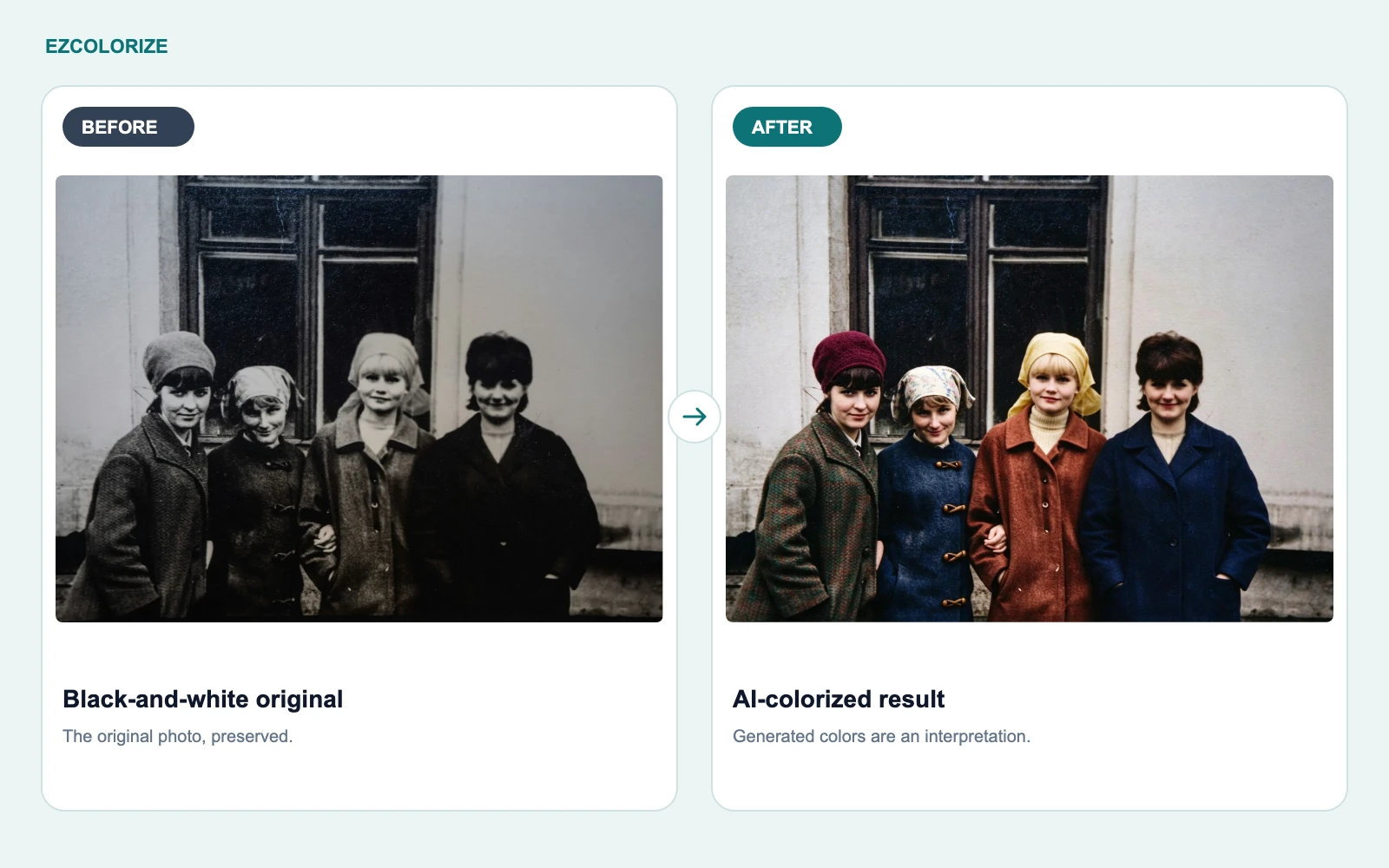
Before-and-after comparison of a black-and-white portrait and its AI-colorized result

How to Colorize Black and White Photos Online for Free

Choose a model, upload your photo, and compare the result before downloading. Try it with available free credits.
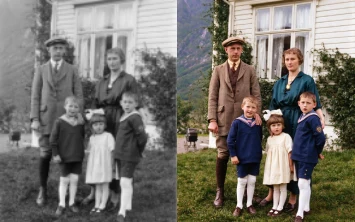
Family photo restoration and colorization example

How to Restore and Colorize Old Family Photos with AI

Prepare old family photos for AI restoration and colorization, review changes carefully, and preserve original scans alongside clearly labeled edited copies.

User Reviews

Carol Bennett

Scanned my parents’ 1968 wedding photo and ran it through. The dress came out ivory rather than pure white, which is apparently what it actually was — my mother confirmed. Faces untouched, no repainting.

Tom Radcliffe

Upload, wait, download. That’s the whole thing. No account wall before you see the first result, which I appreciated. Docked a point mentally because the free preview has a watermark and you only find out after waiting.

Robert Hayes

Half my grandfather’s wartime photos had foxing and a coffee stain on one. The cleanup pass handled the stain without touching the handwriting on the back, which I checked closely. Ran the worst one twice; second attempt was better.

Frequently Asked Questions

How do I colorize black-and-white photos online?

Upload a JPG, PNG, or WebP photo to EzColorize, choose an available AI model, and start processing. When the result is ready, use the before-and-after view to compare it with your original, then download the version you want to keep. No editing skills are needed.

Is EzColorize free to use?

You can try EzColorize with free daily credits. Each photo costs the number of credits shown for your selected model, so a credit is not the same as one free photo. Check your balance before processing. Daily credits reset at midnight UTC and do not roll over; purchased credits do not expire.

Do I need an account or an app to colorize a photo?

No app installation is needed: EzColorize runs in your browser. You can start as a guest using the daily credits available to your device. Sign in to access account features and your account’s task history. Signing in does not add a second free allowance to your remaining guest credits.

Can AI recover the original colors of an old photo?

AI estimates plausible colors from the visual clues in a black-and-white image; it cannot know the original colors for certain. Skin tones, clothing, uniforms, and scenery may differ from reality. For family archives or historical work, compare the result with reference photos and label it as a colorized version.

Can EzColorize repair scratched, faded, or damaged photos?

Depending on the selected model, processing may improve faded tones, soft details, or some visible damage as well as add color. Results depend on the original image and the model’s capabilities. Deep scratches, large missing areas, and severe blur may still need manual retouching. Keep the original scan so you can judge what changed.

Will AI photo restoration change a person’s face?

It can. When facial details are blurred, tiny, or damaged, AI may generate features rather than recover them faithfully. Check eyes, teeth, skin texture, and expressions in the comparison view. A sharper face is not always a more accurate face, especially in photographs of people you know well.

What image formats can I upload?

EzColorize accepts JPG, PNG, and WebP images. File-size limits depend on your account, and the selected model may resize an image to fit its processing limit. If an upload is rejected as too large, try a smaller copy. Keep your highest-quality original separately rather than repeatedly compressing it.

How should I scan or photograph an old print for the best result?

Start with a sharp, evenly lit image. A flatbed scan is a good choice; a phone photo can also work if the print is flat and the camera is directly above it. Avoid glare, shadows, filters, and screenshots. Crop away the surrounding table or album page, while keeping the full photograph.

How long does AI photo colorization take?

Processing time varies with the selected model, the number of processing steps, and demand on the AI service. Follow the progress shown on the page rather than expecting a fixed completion time. Keep the page open until your result appears; a lost connection does not necessarily mean the task has stopped.

Can I download colorized photos for printing?

Yes, you can download the completed image. The result panel shows the available file information, including dimensions when reported by the model. Print quality depends on those dimensions, the print size, and the original photo’s detail. Check faces and edges at full size before ordering prints; a larger file does not guarantee more authentic detail.

What happens to my credits if photo processing fails?

When EzColorize marks a task as failed, the credits charged for that task are returned to the daily and purchased balances they came from. A completed image you dislike is not automatically counted as a failed task. If a charge looks wrong or a result needs review, email [email protected] with your task details.

How are my uploaded photos handled?

Your photo is sent to external AI services for processing and stored so the result can be delivered to you. Anyone with a publicly accessible image link may be able to view or share it, so treat those links carefully. Upload only photos you have permission to process. See our Privacy Policy for data-handling details and contact support with deletion questions.
EzColorize

Bring old memories back to life with EzColorize. Colorize black-and-white photos, restore faded images, and enhance details with AI—all online, with no download required. Try it free with daily credits.

Contact Us[email protected]

Tools

  • Photo Colorizer
  • Image Converter
  • Image Resizer

Resources

  • Blog
  • Pricing

© 2026 ezcolorize.com. All rights reserved.

Privacy PolicyTerms of Service